Welcome to Gizmos4Fun. Your Guide To the Future Technology

Showing posts with label Browser Tricks. Show all posts

Wednesday, September 3, 2008

Google's Browser Chrome Out Today

Its been a buzz word, today the Chrome Google's Browser is out.. Today I downloaded it and tried my hands on it.. But found its to be a mixture of all current browsers(Internet Explorer, FireFox3, Opera and Safari). Well I was satisfied even if it was a stripped verison of FireFox and all other Browsers.

The Fact is it takes less memory usage than any other, you get properties of all other browsers in the slowly shining Chrome.

DOWNLOAD CHROME

So guys whats your take on this.. would love to get any suggestions or comments..

image courtesy : http://www.google.com/chrome

Friday, January 25, 2008

BEST IE-7 Add-Ons

No web browser is perfect, and no web browser does everything just the way everyone wants it to. So I thought of finding some good add-ons for IE-7.. And I did found some of the below..

Enter add-ons. Also called extensions or plug-ins, add-ons let third-party companies and users with programming skills extend the browser's functionality in different ways. They are your ticket to a customized web.

Mozilla Firefox is known as the world's most extensible web browser, which is a big reason for its appeal among web geeks. But users of Microsoft's Internet Explorer 7, Windows Vista's native browser, need not be left out in the cold when it comes to add-ons.

Here's our roundup of the best ways to trick out IE7. You can find even more extensions at the Windows Marketplace.


1. ieSpell
It's a shame a spell-checker wasn't built into IE7, but ieSpell corrects that oversight. Once installed, ieSpell does a nice job of staying out of the way until you need it. There are three ways to activate the spell-checker: from the tools menu, from its own top-level menu and from the contextual (right-click) menu. If you happen to use a branded version of IE7 such as those from MSN or AOL, ieSpell will only be accessible from the right-click menu. IeSpell is also available for Internet Explorer 6.

2. Inline Search
Supercharging Internet Explorer's searching capabilities, Inline Search provides find-as-you-type functionality on the web page you're currently visiting. A quick keyboard shortcut (Ctrl-F) will bring up a toolbar at the base of your browser window, a behavior that closely mimics Firefox's built-in search functionality. Inline Search lets you find as you type, highlight all instances of your search terms on the page or make your search case-sensitive. Regrettably, the keyboard shortcuts aren't customizable, so you'll want to memorize the following shortcuts: Esc closes the search pane when it's in focus, F3 or Enter will find the next occurrence of your search term and Shift-F3 or Shift-Enter will find the previous occurrence. Inline Search is also available for IE6.

3. Add Search Providers
Let's face it: Microsoft's Windows Live Search is a dog. But don't worry, you can add new search engines to IE7's built-in search field with ease. Head over to the Add Search Providers page and choose your preferred service's pre-built tool. Don't see your favorite site listed? Just follow the instructions for the Add Search Provider page's Create Your Own tool. IE7 does the rest.

4. Trailfire Toolbar
Leave behind virtual sticky notes on web pages for others to view. IE7 users can install the add-on and start sharing "trailmarks" with fellow Trailfire users. These marks are little notes on individual web pages that can be strung together to form your own interpretive trail across the web. Trailfire Toolbar is also available for IE6.

5. StumbleUpon Toolbar
Haven't tried the random web yet? The StumbleUpon Toolbar for IE7 lets you stumble and bumble your way through the web. Keep clicking the Stumble button as you "channel surf" through sites that like-minded users have marked as interesting, helpful or informative. For background on StumbleUpon, see our review of social bookmarking sites. Caution: It's highly addictive. StumbleUpon also makes an add-on for IE6.

7. GooglePreviewIE
Want to see a preview of a web page before you visit? The GooglePreviewIE toolbar provides customized search-results pages with thumbnail previews for popular sites like Google, Yahoo and Amazon. GooglePreviewIE's thumbnail images are only visible when searching through the toolbar -- a normal web search will still give you default results. It's extra handy for image and product searches. GooglePreviewIE is also available for IE6.


6. Add Search Providers

With this extension you can add new search engines to IE7’s built-in search field with ease. Check out the Add Search Providers page and choose your preferred service’s pre-built tool or add your own.

7. Mouse Gestures for Internet Explorer

Mouse gestures allow the user to execute commonly performed tasks (open/close a window) by drawing a simple symbol on the screen.

8. Wikipedia Toolbar for IE

Wikipedia Toolbar allows you to search and access Wikipedia content from anywhere on the Web. Wikipedia toolbar is easy to install and guaranteed spy-ware free. You can search Google, dictionary, news, images, stocks and weather information right from your toolbar.

9. Star Downloader Free

Star Downloader is a download manager that accelerates your downloads by splitting the files into several parts and downloading them simultaneously. Download speeds are increased further by choosing the fastest mirror sites.


Tuesday, January 22, 2008

Re-Open Closed Tabs In Internet Explorer

If there's one thing that annoys me in Internet Explorer more than anything else, it's that there is no way to re-open a tab once you've closed it. It's especially annoying when you've done a lot of browsing so you have to sift through your history to find the link for the page you closed.

Thankfully there's an add-on for IE7 called "IE7 Open Last Closed Tab" which will remember what tabs you've recently closed so that you can quickly re-open them.

After installation, you'll notice that there's nothing different in the UI whatsoever… but there are two new shortcut keys.

  • Alt+X will restore the last closed tab.
  • Alt+Q will bring up a screen to let you visually choose from the recently closed tabs.
Note:

You'll notice there's an Amazon ad at the bottom… you can turn that off by clicking the "Disable Product Bar" button on the toolbar, and then you'll get this message:


I'm not entirely sure why they chose Amazon ads to integrate… but either way you can get rid of them. If you really like the software you can always donate some money their way.

Download IE7 Open Last Closed Tab from windowsmarketplace.com

Friday, January 4, 2008

Track the Amount of Time You Spend Online in Firefox

Everybody makes New Year's resolutions, and I wonder how many of you made the resolution to waste less time browsing the internet? If so, here's an easy way to track the amount of time you spend online.


The TimeTracker extension for Firefox gives you a really easy way to track the time you spend directly in front of your browser. The timer only ticks if you are browsing, and you can exclude work-related sites from the timer as well.


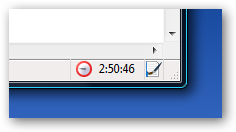
Once you install the extension, you'll notice a little timer down in the lower right-hand corner.


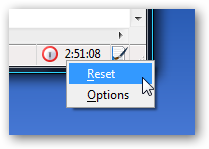
If you right-click on the clock, you'll get a menu where you can easily reset the timer or get to the options page.

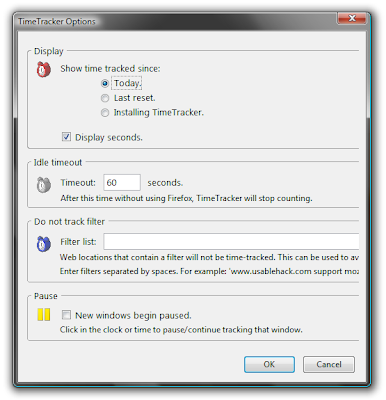
In the options page, you can choose if you want to track the time per day, or cumulative, and you can change a very important setting… turn off the seconds timer so you won't see the thing change constantly (very annoying).

You'll also want to note the "Do not track filter", where you can put in a space delimited list of sites that won't be tracked. This is useful if you want to include work applications, or productivity sites like one of the many to-do lists out there.
It's amazing how much time I spend online… too much.

Thursday, December 20, 2007

FireFox 3 Beta 2!


Mozilla released beta 2 for download by willing testers and impatient 'fox users. The second beta plugs memory leaks (yippee!) and adds features like a new URL auto-complete display, smart bookmarks folders, and revamped download manager. Get more details about beta 2 goodness after the jump.


Notable beta 2 improvements from the release notes include:


Location bar & auto-complete: type in all or part of the title, tag or address of a page to see a list of matches from your history and bookmarks; a new display makes it easier to scan through the matching results and find that page you're looking for.


Smart Bookmarks Folder: quickly access your recently bookmarked and tagged pages, as well as your more frequently visited pages with the new smart bookmarks folder on your bookmark toolbar.


New Download Manager: the revised download manager makes it much easier to locate downloaded files, and displays where a file came from.


Memory usage: Over 300 individual memory leaks have been plugged, and a new XPCOM cycle collector completely eliminates many more. Developers are continuing to work on optimizing memory use (by releasing cached objects more quickly) and reducing fragmentation. Beta 2 includes over 30 more memory leak fixes, and 11 improvements to our memory footprint.


Of course, this is a beta so you don't want to move over to it full-time—unless you're cool with some instability and incompatible extensions while the kinks get ironed out. The Firefox 3 Beta 2 is a free download for all platforms.


[Mozilla Developer News via Download Squad ]

Saturday, November 10, 2007

Internet Explorer 8

IE-8 Leaked Images n a sneak review

First Screenshots from Internet Explorer 8 - Leaked - Fakes?
Internet Explorer 8 is a product under development. Microsoft is currently dogfooding alpha versions of the browser but no additional details have been made available from the Redmond company. By contrast, both Mozilla and Apple feature more opened development models with Firefox 3.0, not up to Gran Paradiso Alpha 6, and Safari 3. And while rival browsers from Apple and Mozilla are scheduled to be made available by
the end of 2007, Safari 3 in October and Firefox 3.0 in November, speculations reveal that Microsoft plans to deliver the first beta for IE8 this year.The anticipation of IE8 is building up, and screenshots alleging to be taken from the alpha version of the browser have apparently leaked on the Internet. Microsoft has confirmed that it is running versions of post-Internet Explorer 7 inhouse. Bruce Morgan - a Software Development Manager, IE Team and responsible with leading the Vista RSS
platform, IE UX, and IE setup teams at Microsoft, revealed in a thread over at Microsoft's Channel 9 that Internet Explorer has moved into the next stage.
Believing that the screenshots are the real deal is a stretch of the imagination, by any standards. What you are looking at is a combination between the current graphical user interface of Internet Explorer 7 (the tabs) and the Ribbon from the Office 2007 System. The images feature a healthy level of Photoshop skill, but there are little details that point out the fact that they are fakes, as for example, the Channel 9 Coffehouse reference at the top of every image. The text corresponds to the title of the webpage the browser is on. And yet the only opened pages point to Google. But while the screenshots are indeed fakes, they offer an interesting view on what the GUI of IE8 would look like with the Ribbon from the Office 2007 System.
This is an easy guess, IE7 is out already and IE8 is set to be released in mid-2008, so we can fully expect IE9 to ship with Windows 7. Internet Explorer 7 was a rather rushed release, as Microsoft tried to stem the growth of Mozilla Firefox, and most of its new additions (such as tabs) seem flaky at times. Therefore we can expect IE8 to be a solid release, which, rather than introducing new features, improves the current feature-set, and makes the UI much more responsive.

Tuesday, October 30, 2007

How to pick a geniune Password


When it comes to security, Bruce Schneier is a god among us mere mortals. He has written some of the most influential books on computer security and cryptography ever printed, and his blog is essential reading for anyone on the Internet.

So when Bruce says here's how to create a secure password (and how he creates his own passwords), I listen. His post on the topic is extensive, so I'll try to boil it down to the essentials. If you have the time, I encourage you to read the whole thing, though.

First question: How are passwords cracked, anyway? Primarily through brute force "dictionary" attacks, where software tries to guess a password by running through a series of common phrases or words in various combinations. Sure, we know that "password" and "qwerty" are easy to crack, but password crackers have gotten much more sophisticated these days. Now, they check hundreds of these common "root" passwords (here's a list)... in combination with various "appendages," including all two- and three-digit combinations, single symbols (like ! and ?), dates from 1900 on, and a few others.
The crackers also sub in common characters like "3" for "E" and other typical hacker-speak substitutions.

What's that mean? Basically, if you thought the safe-looking pigl3t9! was a secure password, you're sadly mistaken. Any modern password cracker will suss it out in a matter of minutes.
Before you begin to despair, Schneier offers simple rules on how to create a password that cannot be easily cracked by such methods. (Mind you, given enough time, any password can be cracked, though. But this will make it much harder.)

The trick is to use a "root" that is not in that list that I linked above, and to put your "appendage" (or two of them) in an unusual place: Either in the middle of the root or at both the beginning and the end.


Thursday, October 25, 2007

Add a WebSite Link to your Start Menu

To Install: Copy the code below to notepad and save it as link.reg then just right click on it and choose "merge" and RESTART.

Windows Registry Editor Version 5.00
[HKEY_CLASSES_ROOT\CLSID\{2559a1f6-21d7-11d4-bdaf-00c04f60b9f0}]@="GIzmos4Fun"
[HKEY_CLASSES_ROOT\CLSID\{2559a1f6-21d7-11d4-bdaf-00c04f60b9f0}\DefaultIcon]@="%SystemRoot%\\system32\\shell32.dll,-47"
[HKEY_CLASSES_ROOT\CLSID\{2559a1f6-21d7-11d4-bdaf-00c04f60b9f0}\Instance\InitPropertyBag]"CLSID"="{13709620-C279-11CE-A49E-444553540000}""method"="ShellExecute""Command"="gizmos4fun.blogspot.com""Param1"="http://www.gizmos4fun.blogspot.com/"


To uninstall:Copy the code below to notepad and save it as link.reg then just right click on it and choose "merge". and RESTART.

Windows Registry Editor Version 5.00
[HKEY_CLASSES_ROOT\CLSID\{2559a1f6-21d7-11d4-bdaf-00c04f60b9f0}]@=""
[HKEY_CLASSES_ROOT\CLSID\{2559a1f6-21d7-11d4-bdaf-00c04f60b9f0}\DefaultIcon]@=""
[HKEY_CLASSES_ROOT\CLSID\{2559a1f6-21d7-11d4-bdaf-00c04f60b9f0}\Instance\InitPropertyBag]"CLSID"="{13709620-C279-11CE-A49E-444553540000}""method"="ShellExecute""command"="""Param1"=""

Wednesday, October 24, 2007

How to Speed up FireFox browser in 4 ways


The below steps will hold good only if you have a Broadband connection - else it will make your browsing much slower.


Let's now have a look at the simple 4 steps.:-

First of all Type “about:config” into the address bar in Firefox and hit return. Scroll down and look for the following entries and make the necessary changes.You will need to enable Pipelining in Firefox. Normally the browser will make one request to a web page at a time. When you enable pipelining it will make several request at once, which will substantially speed up your page loading times.
Alter the entries as follows:

1. Change “network.http.pipelining” to “true”

2. Change “network.http.proxy.pipelining” to “true”

3. Also, change “network.http.pipelining.maxrequests” to a number like 40. This in turn means that Firefox will make 40 requests at once.

4. Finally right-click anywhere in Firefox and select New-> Integer. Name it “nglayout.initialpaint.delay” and set its value to “0″. This value is the amount of time the browser waits before it acts on information it receives - so we ask it not to wait even a second!!

You’ll now see that the webpages in Firefox load MUCH faster now!